Will this shipment fit? Enter your box sizes and quantities, then try a layout in 3D. See how many fit and where there’s room left before you load.
First sign-up? Get full Pro access free for 3 months
Once per new member · applied after sign-up confirmation
First sign-up? Get full Pro access free for 3 months
New here? Sign up and try all Pro features for 3 months. It’s a one-time offer, added in order after we confirm your sign-up—not switched on automatically.
We’re still preparing code signing, so Windows may show a security or publisher warning when you download or install. If you’d rather not install, you can use the browser version instead.
Web · Desktop
You can use the same core loading and analysis tools on the web or in the desktop app. A few file tools, such as interactive Excel 3D, depend on where you run it.
Beta
See a Beta label? That feature is still being tested and may not work as expected. It’s separate from the Basic plan.
Turn on the circular view and move your pointer to peek inside. Arrow keys or a tap work too.
Example BoxExample PalletExample CylinderExample Drum
Same cargo. What if we load it differently?
01 / 04
Those gaps could be useful space.
Spread the same boxes apart and they take up more room.
3D CONTAINER LOAD PLANNER
This is an illustration of layout and quantity changes, not a live AutoFill run or a validated recommendation. It uses none of your runs. In the app, choose which suggested changes to apply and rerun the same mode. Suggestions respect loading restrictions; results depend on your cargo and settings.
02 / 04
Close the gaps. Leave more room.
Let’s bring the boxes closer and compare the layouts.
These numbers are for the front container
Length used by cargo · before
11.9 m
Length used by cargo · after
8.75 m
Extra length left free
+3.15 m
3D CONTAINER LOAD PLANNER
This is an illustration of layout and quantity changes, not a live AutoFill run or a validated recommendation. It uses none of your runs. In the app, choose which suggested changes to apply and rerun the same mode. Suggestions respect loading restrictions; results depend on your cargo and settings.
03 / 04
A small quantity change. Room for more.
Review the suggestions after AutoFill, choose the changes you want, and run the layout again.
Suggested quantity · example
Existing box16 → 24+8
Choose a suggested change
These numbers are for the front container
Before → after Items loaded 42 → 50 Cargo volume (CBM) 34.24 → 47 m³
3D CONTAINER LOAD PLANNER
This is an illustration of layout and quantity changes, not a live AutoFill run or a validated recommendation. It uses none of your runs. In the app, choose which suggested changes to apply and rerun the same mode. Suggestions respect loading restrictions; results depend on your cargo and settings.
This is an illustration of layout and quantity changes, not a live AutoFill run or a validated recommendation. It uses none of your runs. In the app, choose which suggested changes to apply and rerun the same mode. Suggestions respect loading restrictions; results depend on your cargo and settings.
Work out where each box goes before you explain the layout to your team.
Try it on screen. Take the plan with you.
Tell us about the boxes
Have their sizes, counts and weights ready.
Try placing them
Arrange them in 3D and look for gaps.
Take it to Excel
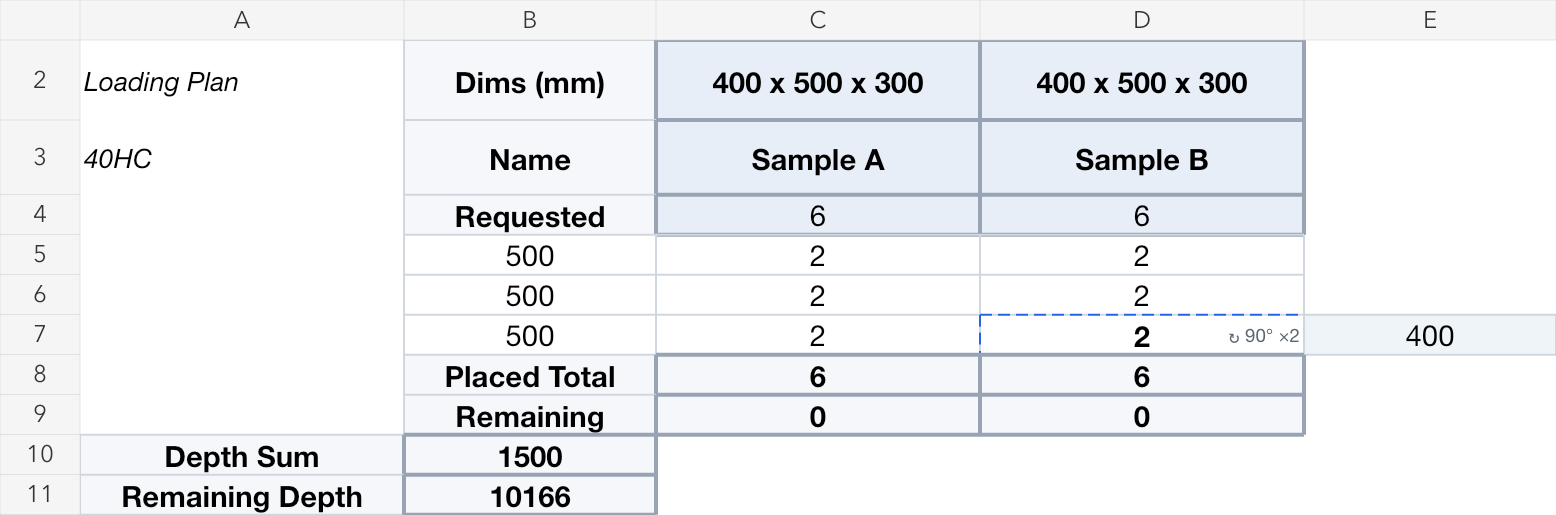
Keep box positions and counts in a loading plan (CLP), as an Excel file or image.
Check it with your team
Compare the plan with where the boxes actually go.
One last check
Complete your on-site safety checks before departure.
01
Tell us about the boxes
02
Try placing them
03
Take it to Excel
04
Check it with your team
05
One last check
Inside the simulator
Want to see how it works?
Want to see how it works?
Explore cargo input, sharing and small conveniences in short videos. Captions are in English.
Use Risk Validation to take a closer look at flagged areas and suggested changes. These checks help you review a plan; they are not a safety certificate.
Move your pointer over a description to see it in action.
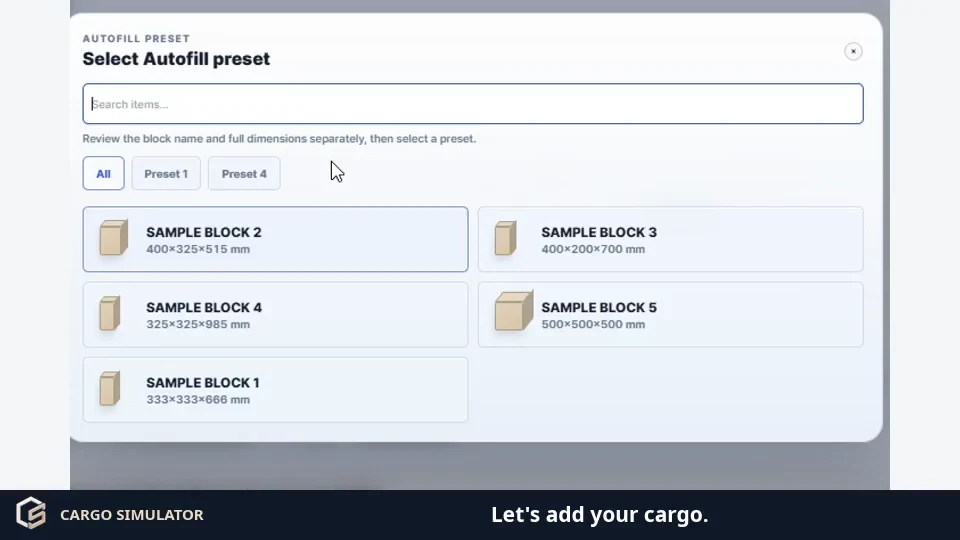
Choose saved cargo sizes, enter quantities and add them to your list.
01
How much space does it take?
Check cargo volume (CBM) alongside the space left in your container.
02
Is the weight balanced?
Check the center of gravity to see which way your load leans.
03
Adjust quantities to make better use of space
Review suggested quantity changes after AutoFill. Choose the adjustments you want and rerun the layout.
04
Your layout, straight to Excel (CLP)
Export your 3D layout as a container load plan (CLP, Container Load Plan) in Excel, so you have a reference when it is time to load.
Here’s what your Excel plan looks like
See where the boxes go in a loading plan (CLP), then take the sample file with you.
An example with 12 boxes, not company or customer records. QR sharing links are optional and can expire; this file has none.
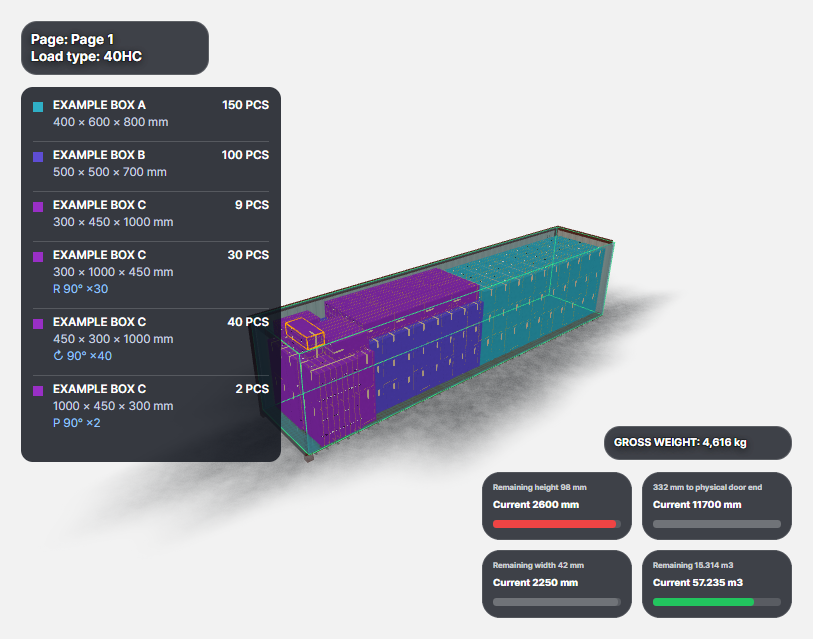
Same boxes. Room for 44 more.
Example layout · results depend on your settings
Same boxes. Room for 44 more.
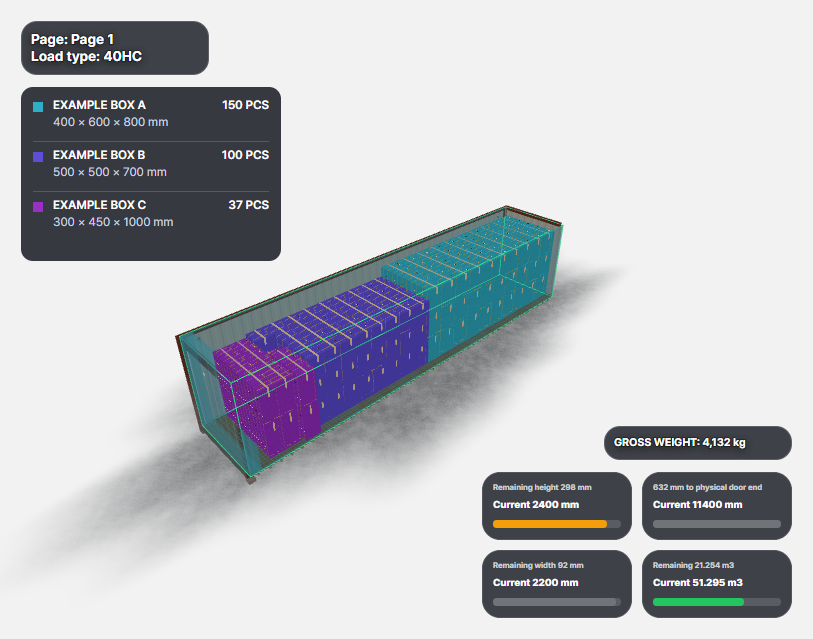
We tried 150 A, 100 B and 100 C boxes in a taller 40-foot container (40HC). Turning boxes and filling gaps took this example from 287 to 331 loaded boxes.
Box sizes: A 400 × 600 × 800, B 500 × 500 × 700, C 300 × 450 × 1000 mm (width × depth × height). Synthetic examples, not customer records. Results vary with layout and settings; maximum capacity is not guaranteed.
In the app, open Preset management → Import Excel. Similar tables are supported; uncertain values need review. Existing presets are never overwritten. Items saved beyond your plan allowance may be unavailable on your current plan.
FREE PLANNING TOOLS
Want a quick idea of what will fit?
Try the calculators first. Or send us your cargo details and ask for a free 3D loading review.
Use one simulator and one consistent workflow for the loading space you need.
Container loading calculator
Container loading calculator
Enter your cargo size, quantity and weight. Try 20FT, 40FT, 40HC or 45HC containers, then see what fits, what is left and the volume it takes up (CBM) in 3D.
Pallet loading
Pallet loading
Choose your pallet size and try turning the boxes different ways. Look at the whole stack before you handle it in the warehouse.
Truck loading
Truck loading
Try your boxes and pallets in the truck's usable cargo space. Check the layout and weight balance before it is time to load.
Cargo loading planner
Cargo loading planner
Loading boxes, cylinders and pallets together? Place them yourself or try AutoFill, then check and export your layout without starting over.
PLAN GUIDE
Start free. See what fits your work.
Try it in your browser first. Need more pages, automatic loading or room for more presets? Compare the plans here.
Basic is a plan name. Beta means a feature is still being tested. To see how many uses you have left, open your account screen in the simulator.
Container loading questions
Not sure where to start? Let's go through the basics.
What is a container loading simulator?
Think of it as a place to try your cargo layout before loading for real. Put boxes and pallets inside a 3D container, then look around to see how they fit.
How can I check how many boxes fit in a container?
Enter the box size and quantity, pick a container and place the boxes yourself or with AutoFill. You can see how many were placed and how many are still left.
What is CBM, and how do I calculate it?
CBM is the volume your cargo takes up, in cubic metres. Enter its size and quantity to see that volume (CBM) beside the layout. Enough volume does not always mean every box will fit; shape and orientation matter too.
Can I try loading onto a pallet?
Yes. A pallet is the base that supports your cargo. Choose one, enter its size and try stacking your boxes before handling them in the warehouse.
Can I check weight distribution?
Yes. Enter cargo weights to see the center of gravity and check for an uneven load. Validation results are a planning aid, not a safety certificate; check real loading conditions too.
What do the container size names mean?
You can choose 20FT, 40FT, 40HC or 45HC. For example, 40HC is a taller 40-foot container. Check the selected container's inside dimensions against the one you will actually use.